DynamicPOV 0.16.4
•
Microsoft Flight Simulator 2024
•
User manual
DynamicPOV turns your head movements into camera movement in the cockpit, adds physical camera effects driven by the aircraft, and gives you self-flying outside shots and camera positions of your own. This manual walks through every part of it, starting with connecting your phone.
Getting started
DynamicPOV has two parts: an app on the flight simulator’s EFB, and a mobile app on your phone or tablet that does the head tracking. The EFB app is the remote control; the camera work keeps running whether or not the app is on screen.
- Load a flight. Open the EFB — the tablet in the cockpit, or the EFB window from the toolbar — and open DynamicPOV from its app list.
- The app has five tabs: HEAD TRACKING, COCKPIT EFFECTS, COCKPIT VIEWS, EXTERIOR VIEWS and CONFIG.
- The EFB window can be undocked and moved like any other toolbar window. Both the window and the cockpit tablet show the same app, and the EFB remembers which app was open, so after a flight restart it comes back by itself.
- New to it? Press Show tutorial at the bottom of the HEAD TRACKING tab. It walks you through installing the mobile app and pairing it in nine short pages.
Head tracking, cockpit effects and the view cycles keep running through a pause, a flight restart, a change of aircraft and a trip to the main menu. The camera is dropped while the simulator reloads and picked up again as soon as a flight camera is available. Nothing is switched off for you.
The app also keeps working in the background: going back to the EFB home screen or opening another EFB app does not stop anything, and the keys keep working. You can close the EFB window at any time.
The log strip at the bottom of HEAD TRACKING records what the add-on is doing. Click it and it copies itself to the clipboard — paste it into any support request.
Connecting head tracking
Your phone does the tracking and streams it to the simulator. Pairing is a one-time QR scan; after that the two find each other by themselves.
Pick the right connection mode
The switch at the top of HEAD TRACKING has two sides, and the mobile app has a matching mode:
- LOCAL NETWORK — the phone and the PC are on the same router (mobile app mode Local Client), or the PC has joined the phone’s hotspot (mobile app mode Hotspot). This is the lowest-latency route; use it whenever you can.
- CLOUD GAMING — the simulator runs on a cloud gaming service such as Xbox Cloud or NVIDIA Play, so there is no direct route to your phone. Choose Cloud Gaming in the mobile app and make sure the server with the lowest latency is selected.
A cloud link, and some local trackers, deliver fewer updates a second than the screen draws. DynamicPOV fills the gaps between updates, so the view glides with your head on the SMOOTH and QUICK filters instead of stepping. A late update does not make the view jump back, and when the stream stops the view settles on your last measured position.
Pair and start
- Install the DynamicPOV mobile app. The tutorial shows the store QR codes for Android and iOS.
- Choose the connection mode in the mobile app (see above).
- Press PAIR in the EFB app. A QR code appears.
- Press PAIR in the mobile app and scan the code. The camera closes when it has read it, and head tracking starts by itself.
- Choose the head tracking mode you want in the mobile app and start it. The view should follow your head within a second or two.
From then on you rarely need to press anything: whenever the EFB app opens and finds the phone streaming, it starts head tracking on its own. To start or stop it by hand use ENABLE HT / DISABLE HT, Shift Alt 7, or L3+R3 on a gamepad.
Once it is on, only DISABLE HT, Shift Alt 7 or L3+R3 turns it off. Restarting the flight, changing aircraft, pausing or going to the main menu leaves it on, and the view comes back once the new flight has a camera.
Reading the four indicators
The row of icons under the buttons shows one indicator per tracking source: HEAD (phone camera or TrueDepth), PODS (AirPods or Buds motion), HAND and EYE. Each is in one of three states:
RED — the source is on, but no valid tracking is arriving
GREEN — the source is on and good data is flowing
With the exchange stopped the whole row greys out, because the app cannot tell a dead tracker from a dead connection.
Re-centre
Once tracking is running, PAIR is replaced by RE‑CENTER. It is also on Shift Space and on R3. Use it whenever your neutral head position has drifted: sit how you want to sit, then press it. The key and the button work with the app in the background, so you never have to bring the app to the front.
The key also brings you home. If the view on screen is not a pilot camera — an instrument view, a quickview, a MISC camera, an ACTION CAM view or one of your own saved cockpit views — Shift Space or R3 first returns you to the pilot camera you were last sitting in (the pilot’s seat or the co-pilot’s) and then re-centres there. It also returns an unsaved seat adjustment to the saved pilot position. Outside, it puts the shot back to its own framing.
If nothing arrives
- Check that the connection mode in the mobile app matches the switch in the EFB app. Choosing the wrong one is the most common cause. If the tutorial ends on the “Something wrong” page, quit it and start again from the beginning.
- After a paired, started app has waited a while with no data, an address field appears above the buttons. Tap it, type the phone’s
IP:PORTon the keypad, and start again. Pairing normally supplies the address by itself, so you should rarely need this. - If LOCAL NETWORK never connects while CLOUD GAMING works from the same phone, the Wi-Fi you are on is keeping its clients apart (hotels, venues and guest networks often do). Switch the mobile app to Hotspot mode and join the PC to the phone’s hotspot instead.
- The mobile app also shows how long ago it last heard from the simulator. While head tracking runs, that figure should stay near zero.
Cockpit views
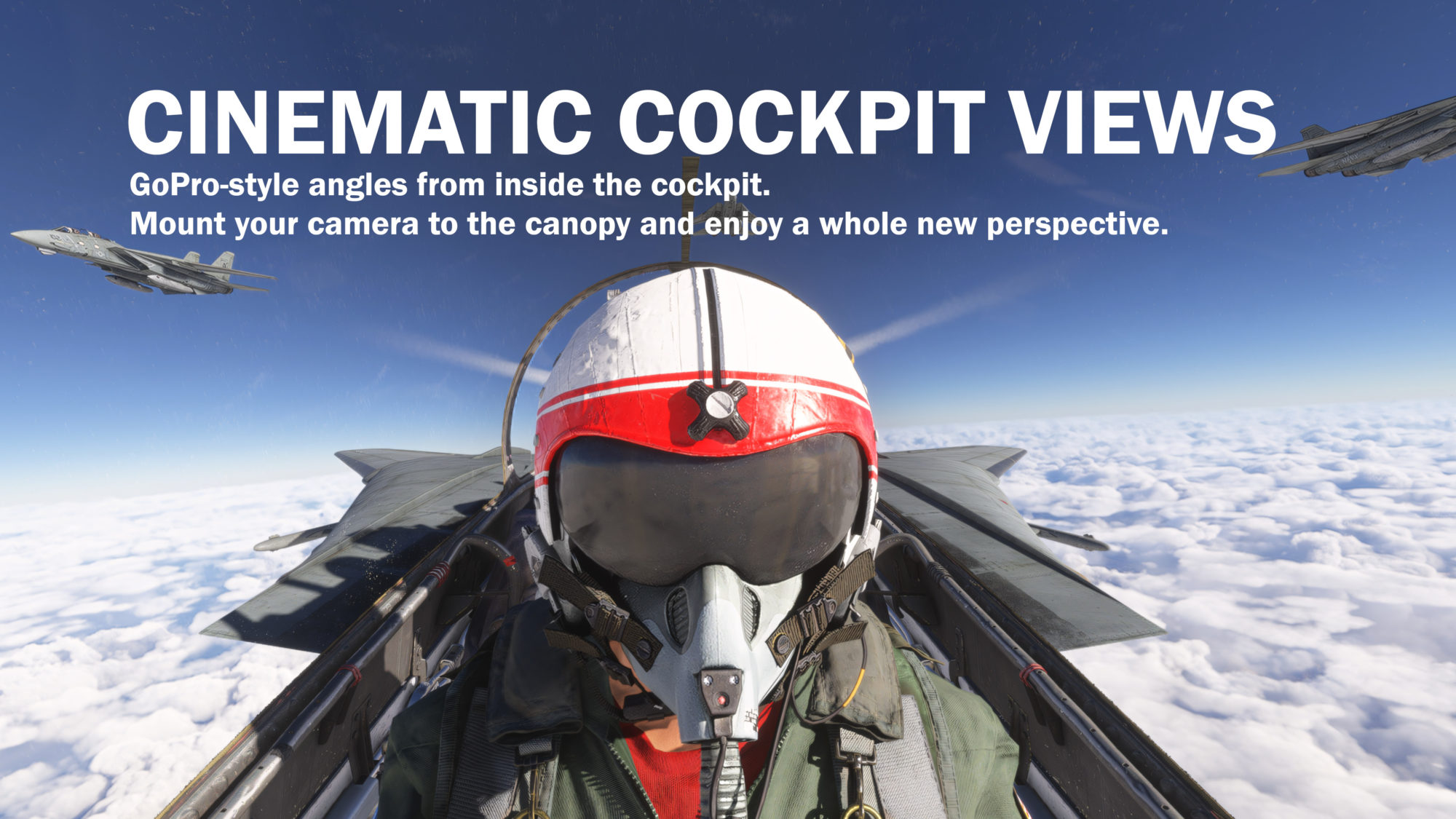
DynamicPOV reads the aircraft’s own cameras, so the list on this tab is different for every aircraft. Open COCKPIT VIEWS to jump to any of them and to build the cycle you step through.
As soon as the aircraft finishes loading, its cameras appear grouped as PILOT, INSTRUMENTS, QUICKVIEW, EXTERIOR and MISC. Until then the tab says it is waiting.
What the controls do
- The tick box puts a view in the step cycle. Untick the ones you never use and stepping gets much shorter. The first seat is ticked and locked: it is the anchor your saved pilot position belongs to, and the seat RE‑CENTER falls back to.
- The INACTIVE button on a row jumps straight to that view. You never have to enable anything first. The first ten instrument views also show a small key badge (Shift 1 to Shift 0): that key jumps to the view from the keyboard.
- The ACTIVE / INACTIVE chip on a group heading shows that the live view is inside that group even while it is rolled up, and pressing it walks that group alone.
- PREV VIEW Shift G and NEXT VIEW Shift T step the whole cockpit cycle, skipping anything unticked, and carry on into your ACTION CAM and CUSTOM VIEW entries at the bottom of the tab.
- SWITCH SEAT Alt Space (gamepad: RB+R3) jumps between the pilot’s seat and the co-pilot’s and back in one press. On an aircraft with no co-pilot camera it always comes home to the seat.
- RE‑CENTER Shift Space (gamepad: R3) is the way back to flying from any other view.
Enumerating an aircraft’s views
Knowing that an aircraft has a camera called Overhead is not the same as knowing where it is. The survey measures each of the aircraft’s native views in turn and stores the result, so that every view lands in the right place for you and for everyone else who flies that aircraft.
The app offers the survey by itself, once per session, for an aircraft nobody has surveyed yet. You can also ask for it from CONFIG → ENUMERATE VIEWS, which re-surveys even an aircraft that already has a map.
- Park on the ground and stop. The survey is refused in the air, above walking pace, and in VR.
- Switch head tracking and cockpit effects off. The survey needs the simulator’s own camera.
- Press ENUMERATE VIEWS. An offer appears. There is no YES button: press Shift Space or R3 to start, which lets the camera settle before the first measurement. LATER puts it off until the next time you open the app.
- Leave it alone for a couple of minutes. The camera steps through every view by itself, then puts your own view back.
Every refusal is written to the log in plain words — still moving, no flight camera, a session is running, already surveyed. If the readings come out unreliable, the app keeps the stored map and asks you to survey again.
A survey is never lost to a bad connection. If it cannot be sent, the EFB keeps it on your PC, uses it for that aircraft in the meantime, and sends it again the next time the app checks the aircraft. Once the server has it, the local copy is deleted.
Cockpit effects
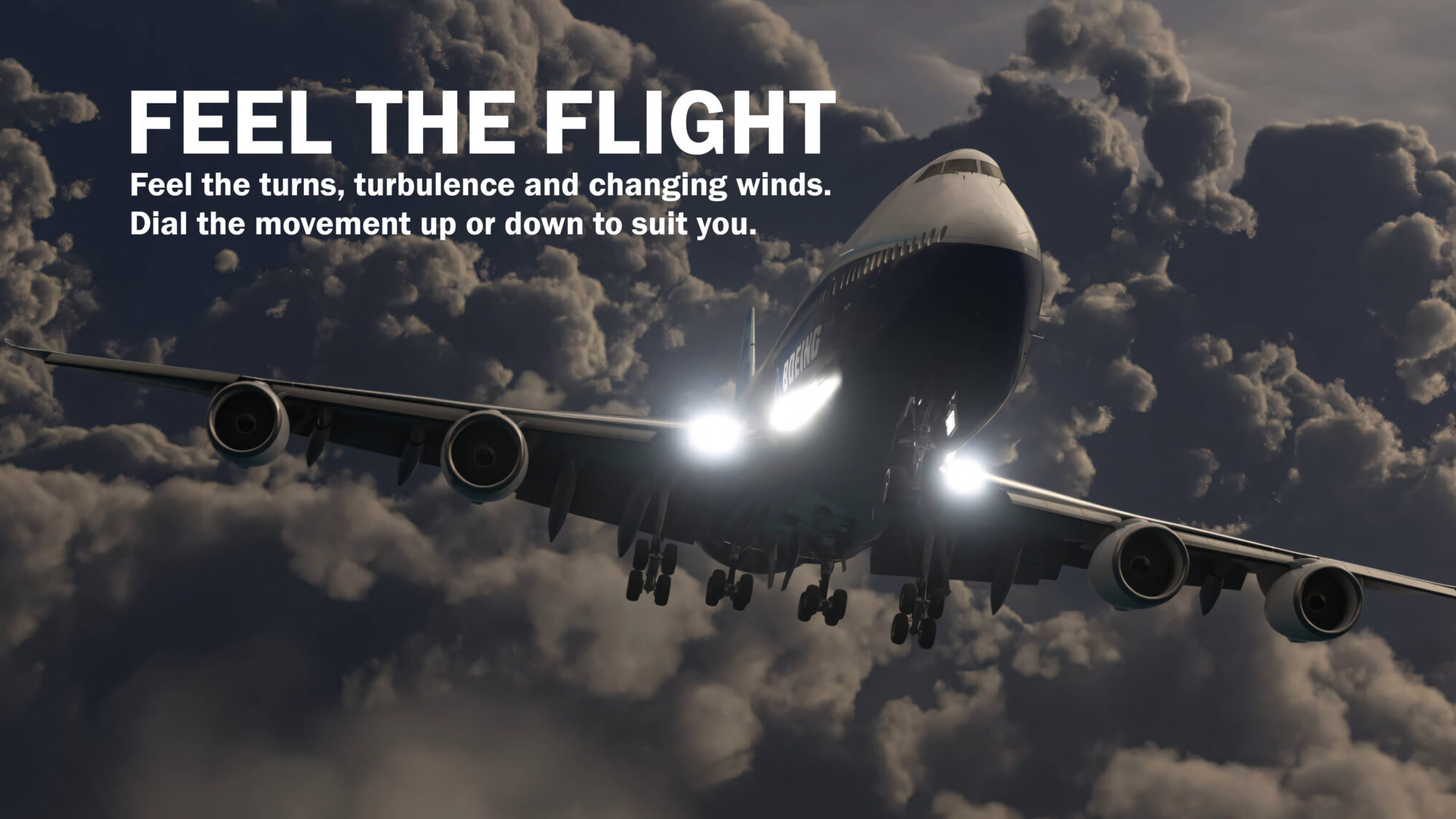
Eighteen physical camera behaviours driven from the aircraft’s own state. No phone is needed — effects run entirely inside the simulator.
- Open COCKPIT EFFECTS and press ENABLE EFFECTS, or press Shift Backspace from anywhere.
- MAIN STRENGTH scales every effect below it. Set it to zero to switch them all off without losing your individual settings. GYROSCOPIC CAMERA, the row above it, is separate: it has its own strength and does not depend on MAIN STRENGTH.
- Each effect is a single 0–100 slider with a description of what it reacts to. Defaults are 50, except GYROSCOPIC CAMERA, which starts off. Effects fire on events and conditions — a touchdown, a spool-up, rough air — and stay quiet through ordinary taxi, cruise and turns.
Exterior views
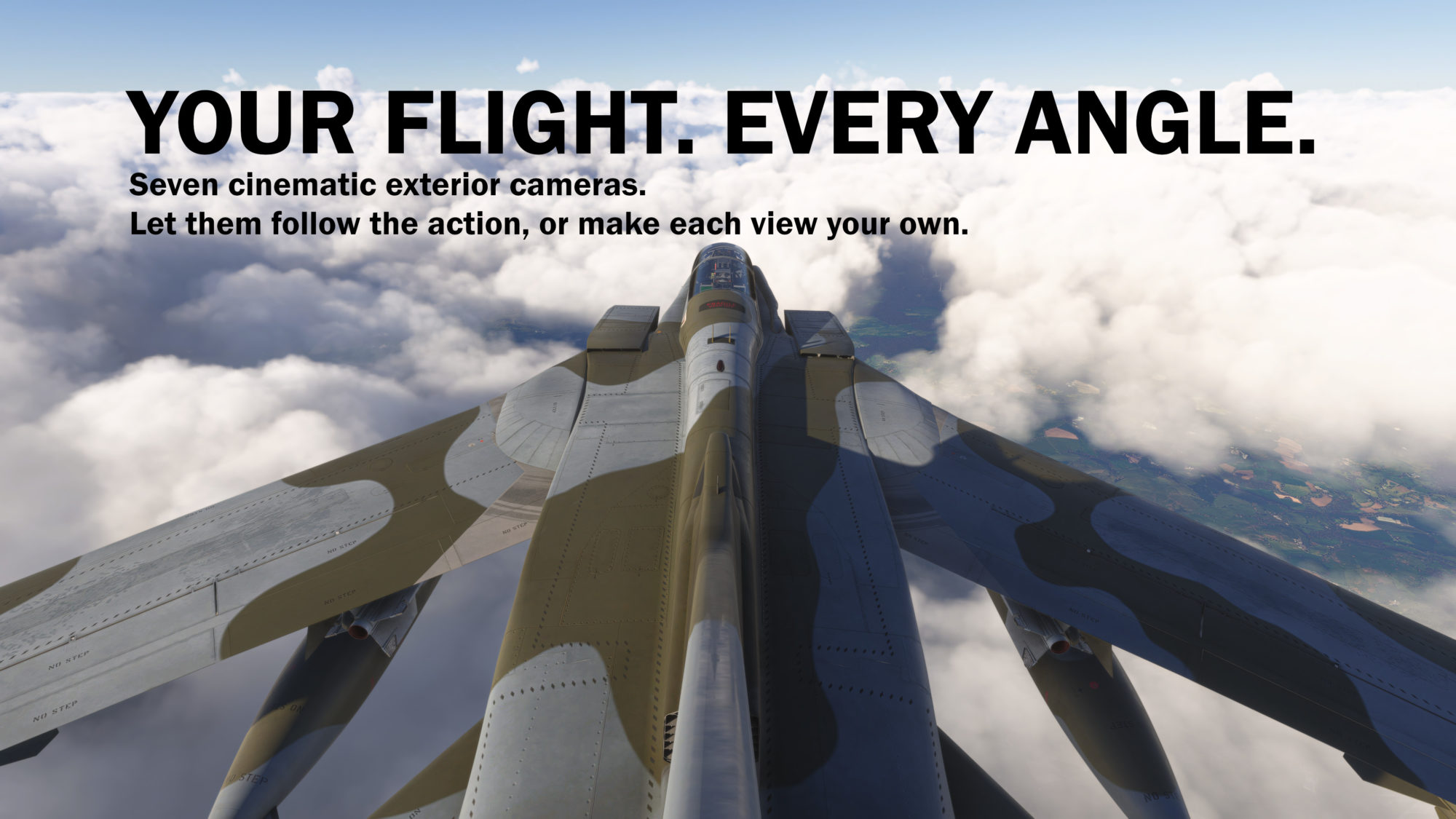
Seven self-flying outside shots. Each frames itself from the size of the aircraft, so there is nothing to set up: tick the ones you want and step through them.
- Open EXTERIOR VIEWS and press the CHASE CAM heading to unroll it. CHASE, ORBIT and FLYBY are ticked to start with; CAMERAMAN, OBSERVER, SWEEP and SATELLITE are a tick away. Each row explains what its shot does.
- Press ENABLE VIEWS, or Ctrl Backspace. The button turns green.
- Now Backspace — or the gamepad’s VIEW button — steps cockpit → first ticked shot → next → … → back to the cockpit, one press at a time. The PREV and NEXT buttons beside the switch do the same.
No shot goes underground. Whatever the shot, your saved views and your own camera moves included, a camera that would dip below the ground under the aircraft is lifted until it clears it and re-aimed, so it skims along the tarmac instead of passing through it. That holds for a tail-dragger sitting nose-high and for a low pass in a bank.
Auto cycle
AUTO CYCLE is cinematic mode. Switch it on and, while an exterior shot is on screen, the app steps to the next ticked shot by itself. It never returns to the cockpit on its own, so the aircraft keeps being filmed until you say otherwise; Backspace still steps and still brings you home.
SHOT LENGTH, the slider that appears when you switch it on, sets how long each shot stays before it moves on: 5 to 120 seconds, 20 by default. It is hidden again while AUTO CYCLE is off; your setting is kept either way. Stepping by hand gives the shot you land on its full length.
It picks shots that suit the moment. Parked on the apron, it skips FLYBY, OBSERVER and SATELLITE, which need a moving aircraft, and films the airframe with the others. On a takeoff or landing roll everything but SATELLITE is in play; in the departure, the circuit, the approach or a low pass, every shot is; in high cruise it skips the ground-level OBSERVER in favour of air-to-air shots. Your saved outside views count as the shot they replay, and a fixed framing suits every phase. If none of your ticked shots suits the moment, it simply takes the next one, so the cycle never stalls.
Instruments
INSTRUMENTS, under AUTO CYCLE, decides whether the aircraft’s own instruments are drawn in the exterior shots. Green (the default) shows them; switch it off to hide them. It applies only while one of DynamicPOV’s own exterior shots is on screen — the cockpit and the simulator’s own outside view are left exactly as the simulator has them — and it is remembered between flights.
With ENABLE VIEWS off, Backspace is the simulator’s own external view and DynamicPOV stays out of the way. Head tracking and effects never turn the exterior views on behind your back. AUTO CYCLE and INSTRUMENTS are preferences: they stay as you left them across flights and do nothing until the exterior views are on and a shot is showing.
Custom views
Your own saved camera positions. There is a CUSTOM VIEW section at the bottom of both camera tabs — cockpit shots in one, outside shots in the other. They are kept on your machine and never uploaded.
Making one
- Start a session first: head tracking, cockpit effects or exterior views. A new view is captured from the camera currently on screen, so with nothing running there is nothing to capture (the app says so).
- Put the camera where you want it. In the cockpit that means moving your seat; outside it means stepping to any of the seven shots and framing it with the right stick, the zoom, and the mouse or your head. Plain movement turns the lens; hold Shift and the same movement moves the camera instead (see Outside views: looking and moving below).
- Press NEW VIEW. It appears in the list, ticked into the cycle. Click the name to rename it. You can keep sixteen per aircraft. While you type, the simulator’s key bindings and the DynamicPOV hotkeys are paused; they come back when you press Enter, click elsewhere or close the tablet.
- SAVE appears on every view of a section while that side’s camera is live. It stores the camera as it is now into that view — after a confirmation, because it replaces what was there — and switches to it. That is how you rebuild a view without deleting it: the name, the slot key and the place in the cycle all stay. RESET appears only on the cockpit view you are currently sitting in, and puts the camera back where that view was saved.
- An outside view saved from one of the seven shots replays that shot: save SWEEP and it sweeps, save FLYBY and the aircraft flies past it again, save ORBIT while it is circling and the view circles — unless you had moved the orbit yourself, which saves it as a fixed framing. The zoom you saved comes back with the view, and a view that replays a shot shows that shot as a small tag after its name.
- The small duplicate button — two overlapping squares, beside the × — copies a view and opens the name editor on the copy. The copy is named after the original: Left wing becomes Left wing 2. It works from the saved view, so it does not need a live camera.
The switches on each view
Each saved cockpit view carries six small switches. On the first five, green means free and red means held: a locked view is a fixed shot, an unlocked one is a place to sit and look around from. An outside view carries four of the six.
GIM reads the ordinary way round: green means the horizon hold is on, red means it is off.
- EFF — cockpit effects stop while this view is showing.
- POS — the camera stays put whatever the head tracker, the seat keys or the effects do.
- DIR — the aim is fixed; it does not turn with your head, the stick or your eyes.
- FOV — the zoom is fixed; the zoom controls do not change it.
- PILOT — a flag, not a lock. Aircraft that draw their pilot figure from the simulator’s camera state show one on this view.
- GIM — gimbal, green when on. The camera holds the horizon level while the aircraft rolls. It holds bank only: the rest of the aim still follows your head, the stick and your eyes, so it is not the same as DIR. It works on cockpit and outside views alike, and the gyroscopic camera effect stands down while it is on so the two cannot counter-roll the same bank twice.
An outside view carries four of them — POS, DIR, FOV and GIM. POS holds the camera at the place the view was saved from, and DIR holds the aim it was saved with, both against your head, the right stick and the mouse, so the shot stays framed while you sit on it. A view saved from a moving shot still moves the way it was made: the orbit keeps circling, the sweep keeps sweeping. FOV holds the zoom. There is no EFF out here, because effects never run outside the aircraft, and no PILOT.
Views you can reach from the keyboard
Rows drawn with a small key badge can be reached from the keyboard without opening the app, while a DynamicPOV camera session is running (head tracking, effects or the exterior views). The first four of each CUSTOM VIEW section have one, and so do the first ten of ACTION CAM and the first ten instrument views.
- Cockpit: Shift F1 to Shift F4 load slots 1–4, and Shift F5 to Shift F8 save into those same four.
- Exterior: Shift Ctrl F1 to F4 load slots 1–4, and Shift Ctrl F5 to F8 save into those same four.
- ACTION CAM: Shift Ctrl 1 to 9, then Shift Ctrl 0 for the tenth, load the first ten rows of the section in the order they are drawn, ticked or not. There is no save key: the library is shared.
- Instrument views: Shift 1 to 9, then Shift 0 for the tenth.
Shift Ctrl with a digit and Shift Ctrl with a function key are different features: the digits are ACTION CAM, the function keys are your exterior slots. Every row’s badge shows the one key that reaches it.
Everything happens on the press; there is nothing to hold down. A save overwrites whatever was in that slot; a save into an empty slot makes a new view exactly as NEW VIEW does, so it lands on the next free row: with two views saved, Shift F8 makes view 3.
Outside views: looking and moving
Any of the seven shots can be saved, FLYBY, OBSERVER and SATELLITE included. A saved view replays its shot around the aircraft wherever it is flying, not at the airport it was made over. A fixed framing — for example an ORBIT you had moved before saving — is kept in the aircraft’s own frame as the airframe sat at that instant, so save those from level flight where you can: one captured mid-bank comes back leaning the same way.
Your head and the mouse turn the lens. With head tracking running, look around and the view swings with you; with the mouse, hold the right button, or switch MOUSE LOOK mode on and move. The camera stays where it is and only the aim changes.
Hold Shift and the same movement moves the camera instead. It walks round the aircraft on a sphere, keeping its distance, with the lens following so the aircraft stays in frame. A saved view is carried round rigidly, so whatever it was framing stays framed. Let go and the camera stays where you walked it to; the look glides back over a fraction of a second, so nothing snaps.
FLYBY and OBSERVER are the exception, because they stand still in the world and let the aircraft come past. There Shift slides the viewpoint instead — sideways across the aircraft’s track, and up and down from where it was dropped. OBSERVER is never pushed below its eye height.
The right stick moves the camera on ORBIT, CAMERAMAN and FLYBY, and turns the lens on the rest. On the others, holding Shift on the keyboard makes the same push move the camera instead, exactly as it does for the mouse and your head. Nothing jumps when Shift goes down or comes up. On the three shots the stick already moves, Shift changes nothing.
The zoom is yours on a saved view until you switch its FOV on. Switch FOV on and the view keeps the field of view it was saved with. Either way, step to another view with Backspace, or re-centre with Shift Space or R3, and the shot returns to its own framing — a saved view to exactly what was saved.
To keep a framing you have moved to, press SAVE on the row you want it in, save it into a slot with Shift Ctrl F5 to F8, or press NEW VIEW for a fresh row. The save takes the moved position and any lens turn you made with the stick or the mouse — never your head, which belongs to you rather than to the shot. There is no RESET out here, because a saved shot already comes back to itself.
ACTION CAM, above CUSTOM VIEW in the cockpit tab, is the shared library: views published for an aircraft by its developer. You can tick them into the cycle, jump to them and fly them, but they are read-only for most users. Everything you make yourself goes in CUSTOM VIEW. Press LOAD when the app asks to fetch the library’s newest set; it replaces any unsaved ACTION CAM changes.
Custom views are kept per aircraft type and model, so a variant never shows another variant’s views.
Seat, pad and mouse
The CONFIG tab holds the settings that change how everything else feels.
Neck offset
How far your eyes sit ahead of the pivot your head turns on, in centimetres. It is what turns a head rotation into the small sideways movement a real head makes. Too small and turning feels flat; too large and the view swings. The default is 15 cm.
The same offset now applies to tilting and nodding. Tilt your head toward a shoulder while facing forward and the eyes swing a little to that side and dip; look down or up and they lower or rise slightly. Your seat never moves forward or back from a tilt or a nod. Looking out of a side window, the sideways swing fades away, as it does on a real neck. The roll of the gyroscopic camera is not counted, because that is the camera mount levelling the horizon, not your head.
Joystick
Every connected controller is listed; the selected one is the pad DynamicPOV listens to. REFRESH re-enumerates after plugging one in. Click the selected controller again to turn gamepad control off entirely.
Mouse look
Aims custom cameras with the mouse: hold the right button to look. It only works while a mouse is detected. Untick it to keep the mouse out of camera control altogether.
In an outside view, hold Shift as well and the same movement moves the camera instead of turning it (see Custom views).
Two sliders under the switch set how it feels.
- MOUSE SPEED — how fast the mouse turns the camera, as a percentage of the built-in speed. 100 % is the standard speed; lower is steadier, higher is quicker. The range is 10 % to 300 %.
- MOUSE MOMENTUM — how long the view keeps gliding after the mouse stops. 0 snaps to a halt the instant you stop moving; higher values glide on for longer, up to 100. The default is 20.
Both are remembered and take effect immediately — there is nothing to apply.
Pilot position
This is where you sit, per aircraft. It survives with or without the app open, and once saved, from one session to the next.
- Start a camera session, then slide the seat: Shift W/S forward and back, Shift A/D sideways, Shift E/Q up and down. On a gamepad, hold L3 and use the right stick, with LT/RT for up and down.
- Shift Space or R3 re-centres if you overshoot.
- When you are happy, press SAVE PILOT POSITION. It takes hold the moment you press it, so you can carry on adjusting and nothing you move after the save is lost. The aircraft opens there next time. If the server cannot be reached, this flight keeps the seat anyway and the log says the save did not get through.
- RESET, beside it, puts you back on the aircraft’s own default seat and saves that, so the next flight opens there too.
Save from the pilot seat. While an ACTION CAM view or one of your own cockpit CUSTOM VIEWs is on screen, SAVE PILOT POSITION and RESET are greyed out and a note tells you to step back to the pilot seat, because the pilot position belongs to the seat, not to the view you are looking through. Step back with Shift G / Shift T or the seat’s row in COCKPIT VIEWS, and both come back.
An unsaved seat survives a look outside. Step out to the exterior views, or to the simulator’s own outside view with Backspace while ENABLE VIEWS is off, and the seat is where you left it when you come back. Re-centring, switching the camera off, a flight restart, an aircraft change or the main menu puts it back to the saved position, so save before any of those.
Shift A and Shift D are intentionally the opposite way round from the WASD convention. You are aiming a camera, not walking an avatar: Shift A sweeps the picture left (which slides the seat right). The keys follow what happens on screen.
Aiming and zoom
One rule explains most “why doesn’t the stick do anything” questions.
The right stick, mouse look and the zoom wheel take over only when DynamicPOV is holding a camera that nothing else is aiming — a cockpit-effects session, an exterior view, or eye tracking alone. The moment a real head pose is arriving, your head owns the aim and the stick, mouse and wheel go back to the simulator.
- Right stick — aims the camera.
- Mouse — hold the right button to look (if MOUSE LOOK is ticked).
- Mouse wheel — field of view.
- RB + right stick, left/right — zoom on a gamepad. Up and down still trim the aircraft, which is what RB normally does.
If the simulator never reports the release of a gamepad button, DynamicPOV lets go of it by itself after five seconds so the stick does not stay stuck trimming. A genuine hold that long is simply pressed again.
Outside the exterior views, the mouse wheel stays with the simulator in the stock cockpit; DynamicPOV only takes it once Backspace has entered one of your selected exterior views.
Raise your eyebrows to zoom (Android)
On the Android app, the FOCUS VISION eye icon under AUTO DIM switches on a hands-free quick zoom. Hold both eyebrows raised and the cockpit view zooms in 2×, with the cockpit effects easing off while you read; relax them and it zooms back out. Your head keeps aiming the view throughout.
- It needs HEAD camera tracking, and it works in the cockpit only, not in the exterior views.
- It adapts to your face as you fly, so a resting expression never triggers it. A short raise is ignored, and it will not engage while you are looking far to the side, up or down.
- The camera preview shows
BROW nn%(100 % is the point where the zoom engages) andZOOM 2×while it is on. Use it to see how high you need to raise them. - The icon is remembered between launches and is not changed by restoring the defaults. It is hidden in the OpenTrack and EE:VR modes.
Control reference
Everything DynamicPOV binds. None of these keys are taken away from the simulator, which keeps whatever it already had on the same keys.
| Action | Keyboard | Gamepad | Where |
|---|---|---|---|
| Head tracking on / off | Shift Alt 7 | L3R3 | HEAD TRACKING |
| Re-centre, and return to the pilot camera | Shift Space | R3 | HEAD TRACKING |
| Cockpit effects on / off | Shift Backspace | — | COCKPIT EFFECTS |
| Previous cockpit view | Shift G | — | COCKPIT VIEWS |
| Next cockpit view | Shift T | — | COCKPIT VIEWS |
| Switch seat (pilot ↔ co-pilot) | Alt Space | RBR3 | COCKPIT VIEWS |
| Jump to instrument view 1–10 | Shift 1 … 9, Shift 0 | — | COCKPIT VIEWS |
| Jump to ACTION CAM view 1–10 | Shift Ctrl 1 … 9, Shift Ctrl 0 | — | COCKPIT VIEWS |
| Load cockpit custom view slot 1–4 | Shift F1 … F4 | — | COCKPIT VIEWS |
| Save into cockpit custom view slot 1–4 | Shift F5 … F8 | — | COCKPIT VIEWS |
| Exterior views on / off | Ctrl Backspace | — | EXTERIOR VIEWS |
| Next exterior view | Backspace | VIEW | EXTERIOR VIEWS |
| Load exterior custom view slot 1–4 | Shift Ctrl F1 … F4 | — | EXTERIOR VIEWS |
| Save into exterior custom view slot 1–4 | Shift Ctrl F5 … F8 | — | EXTERIOR VIEWS |
| Move the camera instead of aiming it (outside views) | Shift + mouse / head | Shift (keyboard) + right stick | EXTERIOR VIEWS |
| Seat forward / back | Shift W / S | L3 + right stick | CONFIG |
| Seat sideways | Shift A / D | L3 + right stick | CONFIG |
| Seat up / down | Shift E / Q | L3 + LT / RT | CONFIG |
| Zoom / field of view | Mouse wheel | RB + right stick left / right | Custom cameras |
| Start a view survey (on the offer) | Shift Space | R3 | CONFIG |
Both left and right modifier keys work for every key above.
Need help? When you contact support, include the aircraft (type and variant), the add-on version, which features were running, whether the app was in front, in the background or the EFB closed, and the log copied from the HEAD TRACKING tab (click the log strip to copy it). A camera problem with no aircraft name is almost impossible to reproduce.