
Base functionality copied from Blanik tablet script. Shortly, it’s a toolbar which sends aircraft data to the mobile app. This app then shares data with navigation app, like XCSoar or SkyDemon. Android app supports GPS spoofing, which can be used common nav apps like Google Maps (developer mode should be enabled on the smartphone).
Limitations of current version:
– toolbar can’t be closed while data export is active
– while minimised, toolbar icon disappears only when placed in top left corner of the screen
– iOS app does not work correctly when data export frequency is lower than 5Hz
– some apps require to set data export frequency as 1Hz (these use XPlane data exchange protocol)
-both apps in beta stage and may behave unexpectedly – crash, freeze, stay at background and consume power. You may delete the app while it not used. Report issues if you will find any.
To configure NMEA data export toolbar you have to install the app on your mobile device (separate apps for Android and iOS).
1. Install MSFS to NMEA app:
Install TestFlight app from App Store (this is kind of “app store for beta apps”). Open TestFlight, click on the MSFS to NMEA tab, select INSTALL. Blue app icon with glider image will appear on the desktop.
2. Ensure that your mobile device is connected to the same router as PC/Xbox (either WiFi or LAN), and data exchange between clients is not blocked by firewall (usually don’t if you haven’t set your network as Public).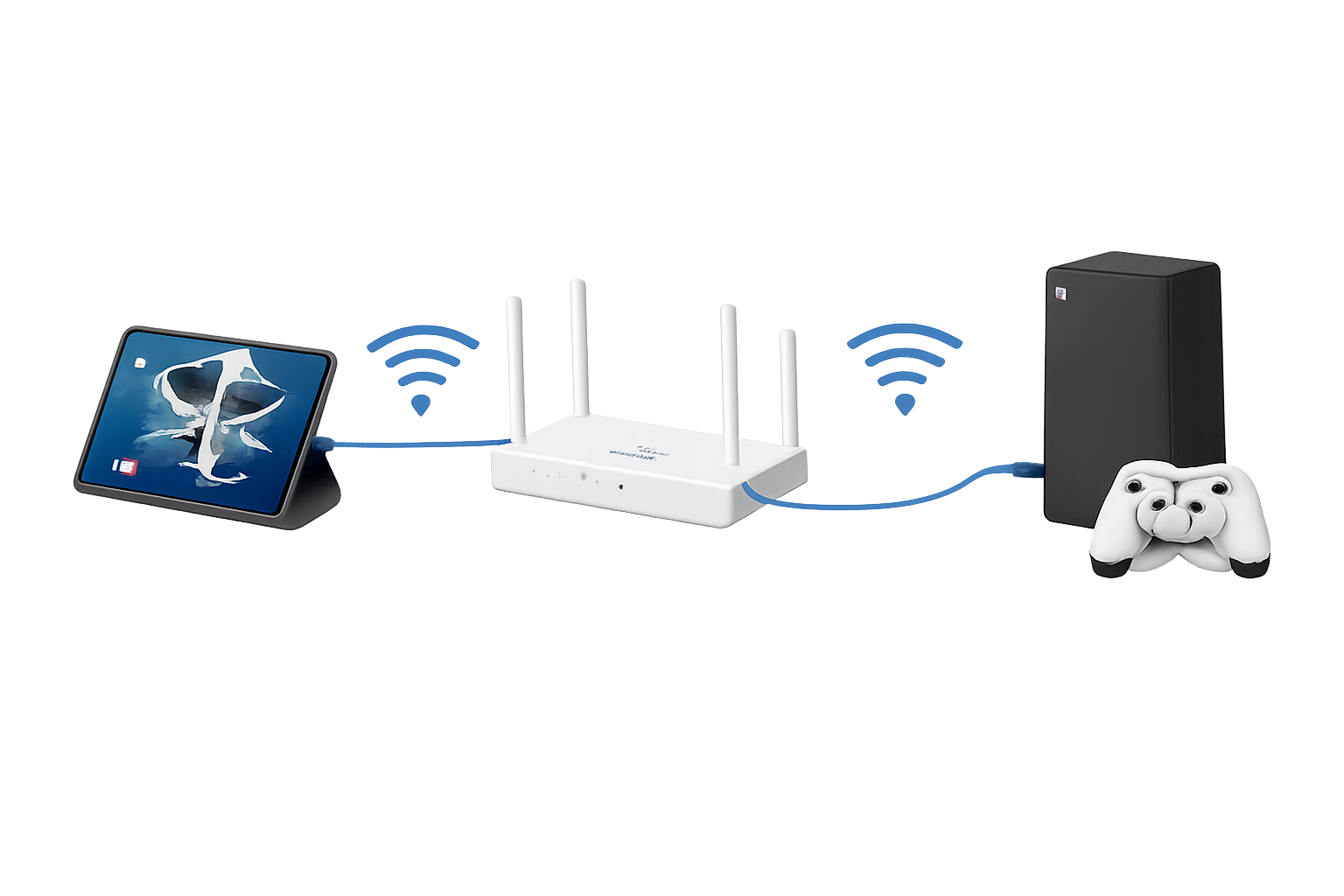
Send mobile device IP to the server
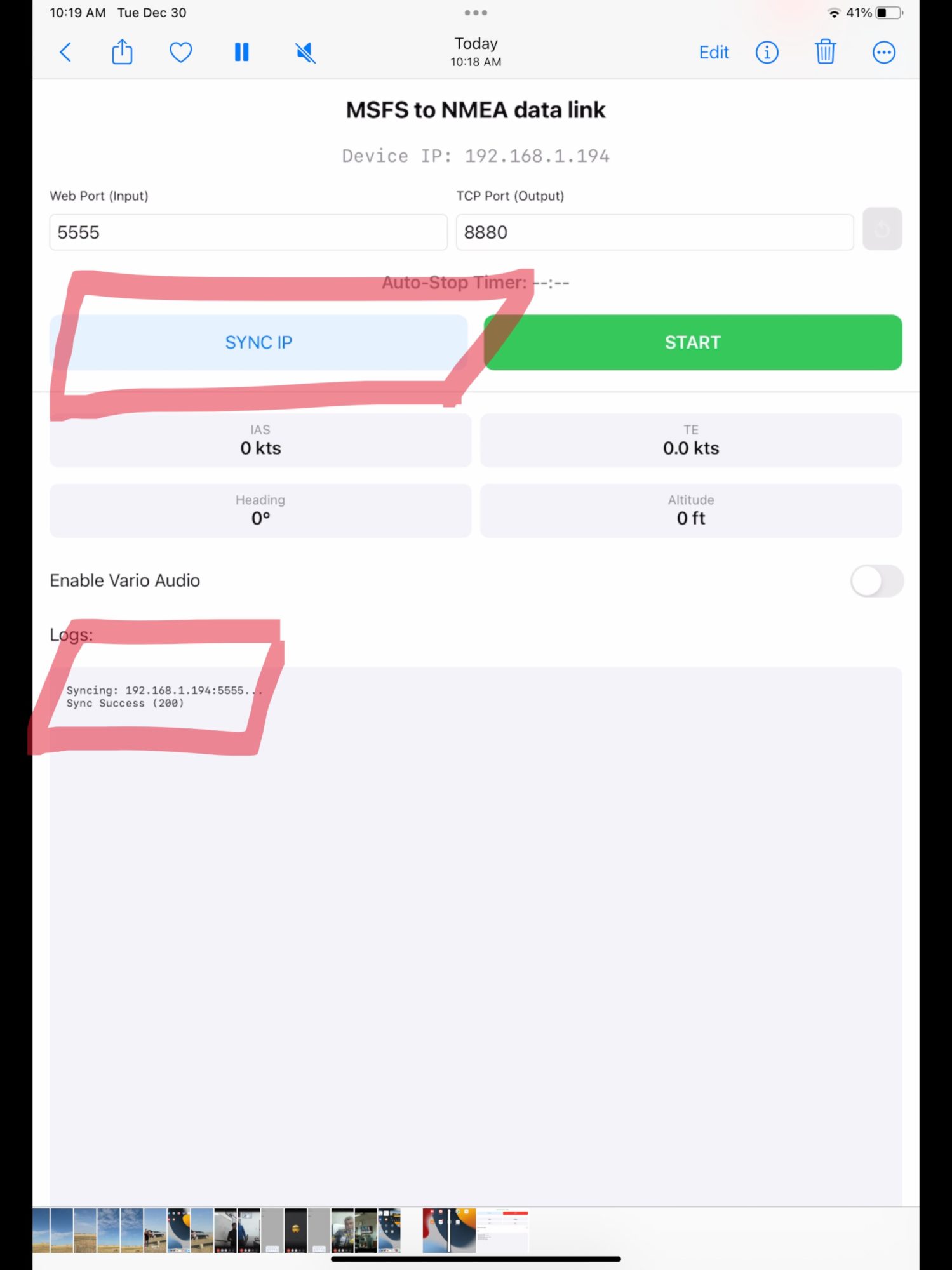
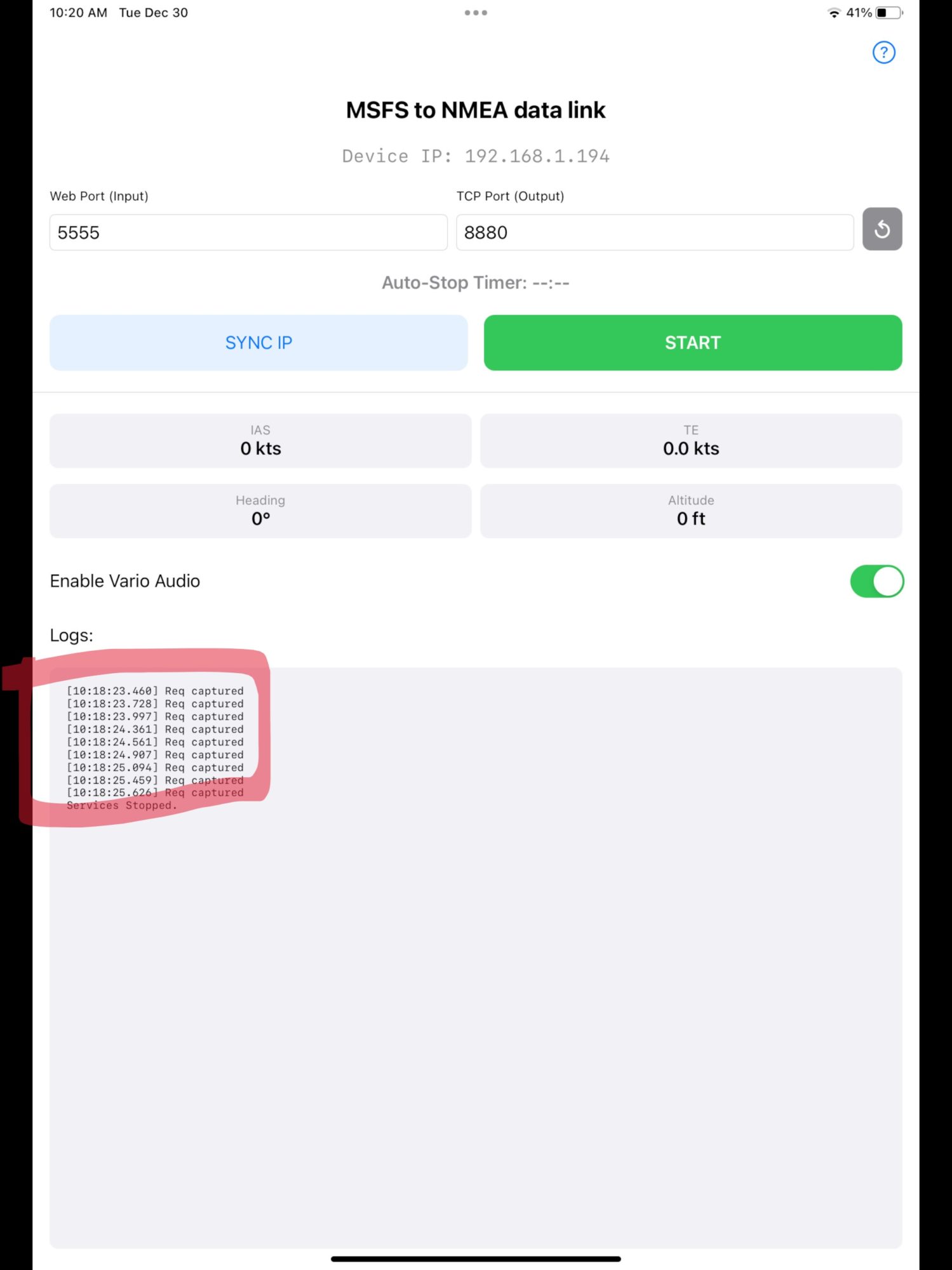
1. Launch Android/iOS app. Once loaded, it will try yo sync your local IP with server. If you see Sync Success in the log, everything went well. If not, fix connection issues and press SYNC IP.
Configure MSFS nav tablet
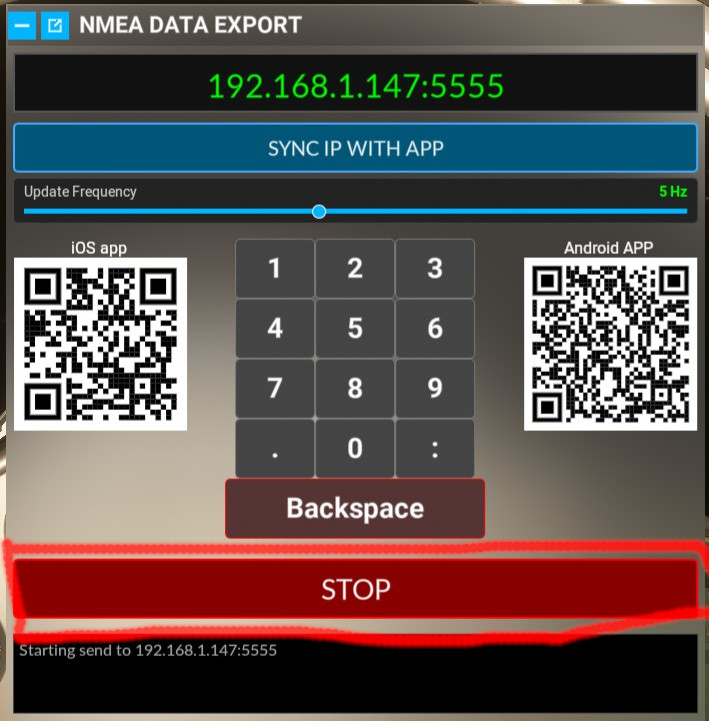
1. Time to configure MSFS part. Open NMEA data export toolbar
2. Press the SYNC IP button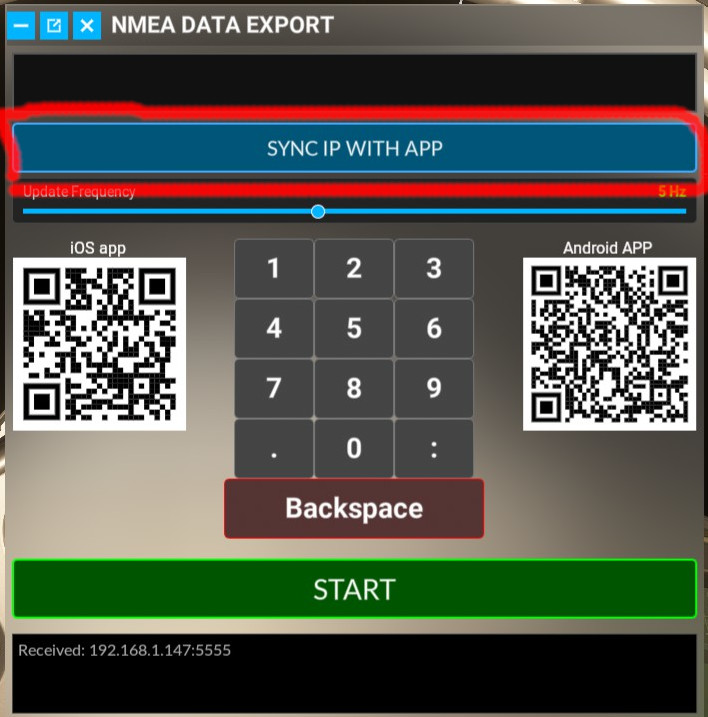
3. If it went well, you will see your local IP and correct port in the field. If not, try to fix connection issues, or type IP by hands using keyboard. Then press START button
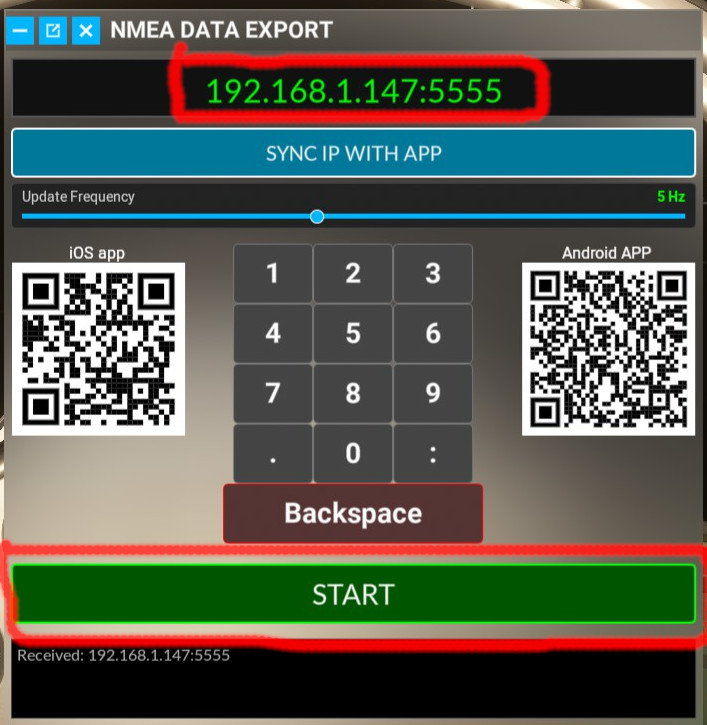 4.Starting send to x.x.x.x will appear in log if everything okay, START button became red.
 5. Back to the MSFS to NMEA app. Incoming data should be indicated in the log as RX lines. If not – something wrong with your network, try to change ports and start from beginning, or change router settings to prevent data exchange block by firewall.
CONFIGURE NAV APP
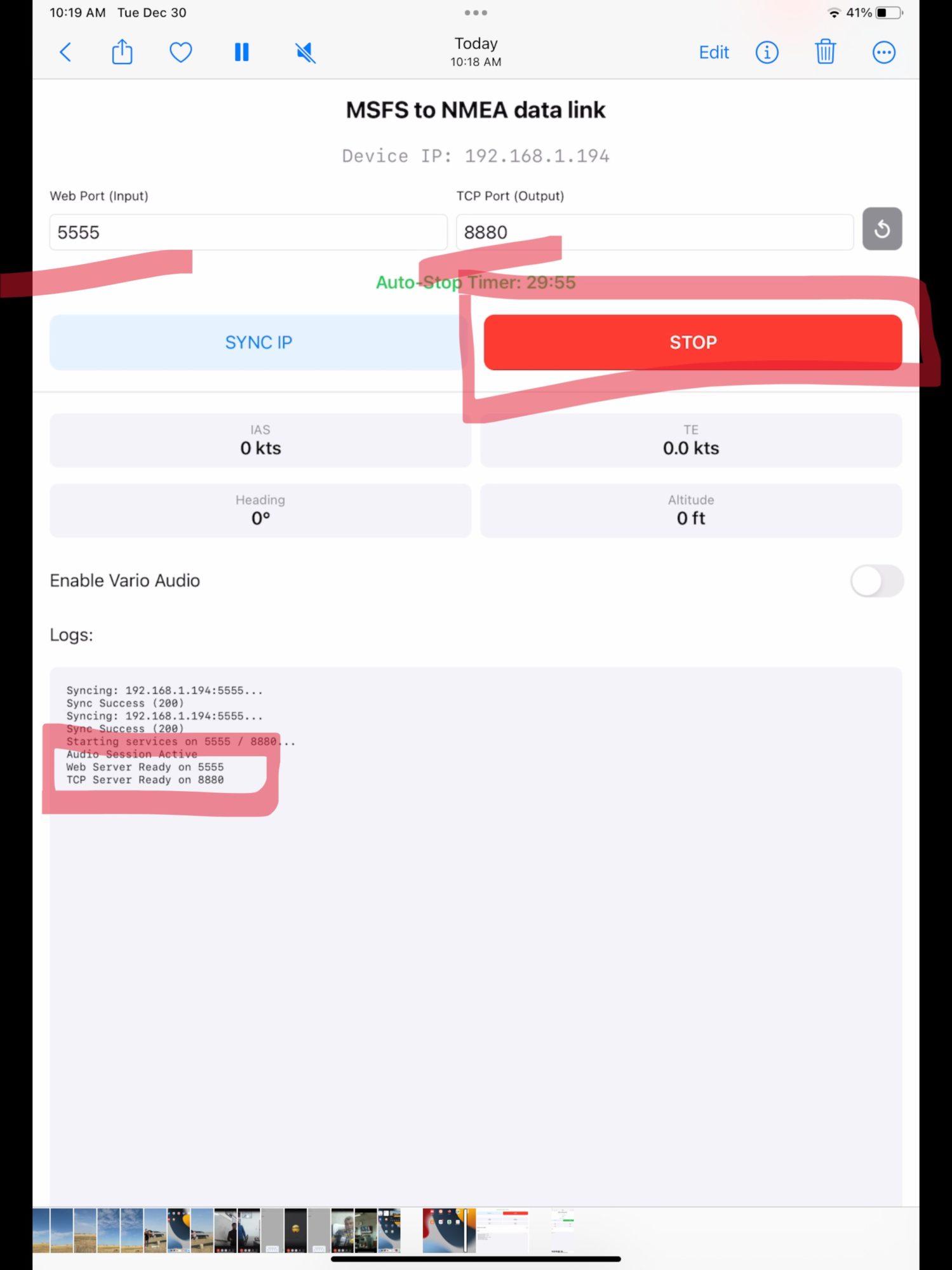
1.In the app, select TCP Client mode, TCP port 8880. press START button, Web Server OK and TCP Server OK should appear in log. If not, some of the ports are busy – change 5555 to 5556 for example, or 8880 to 8881. Press SYNC IP again, then START.
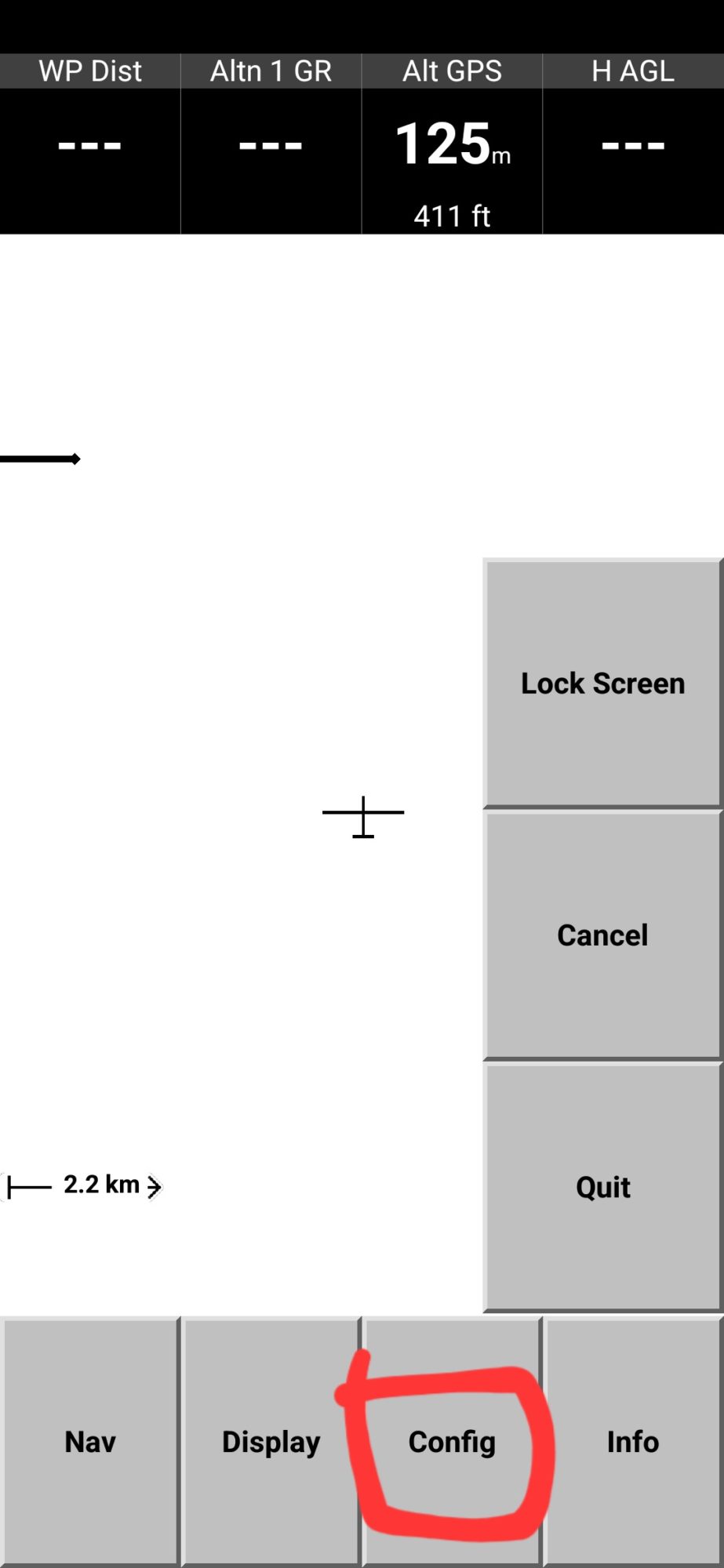
2. Open XCSoar and select FLY.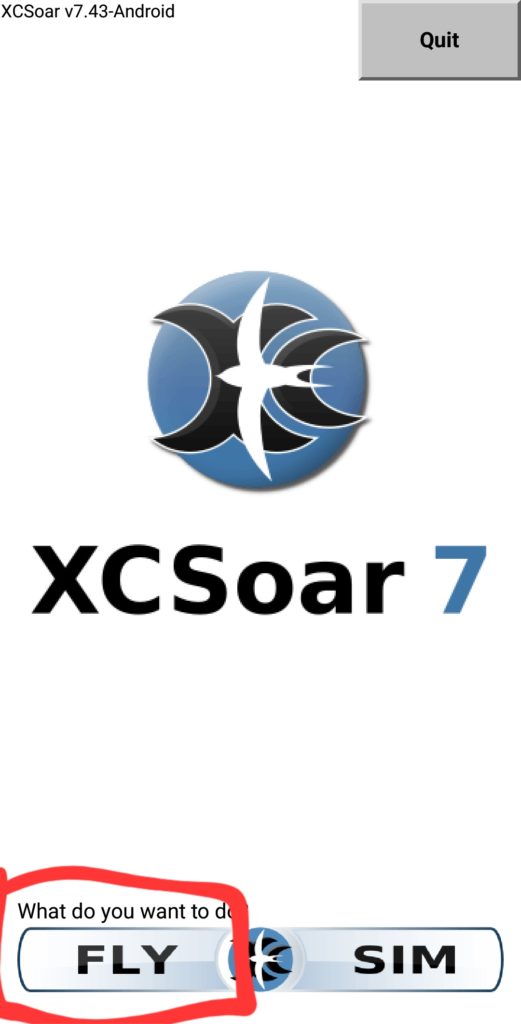 3. Tap twice the screen, choose CONFIG
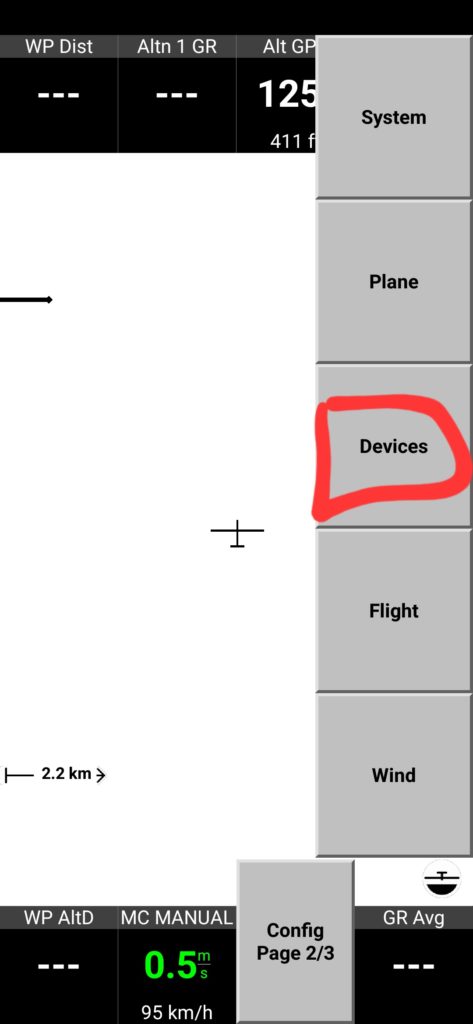
 4. Then DEVICES
 5. First, disable built in sensors. If you will not do it, your device GPS and barometer sensors data will conflict with simulator data. Select first line and tap DISABLE.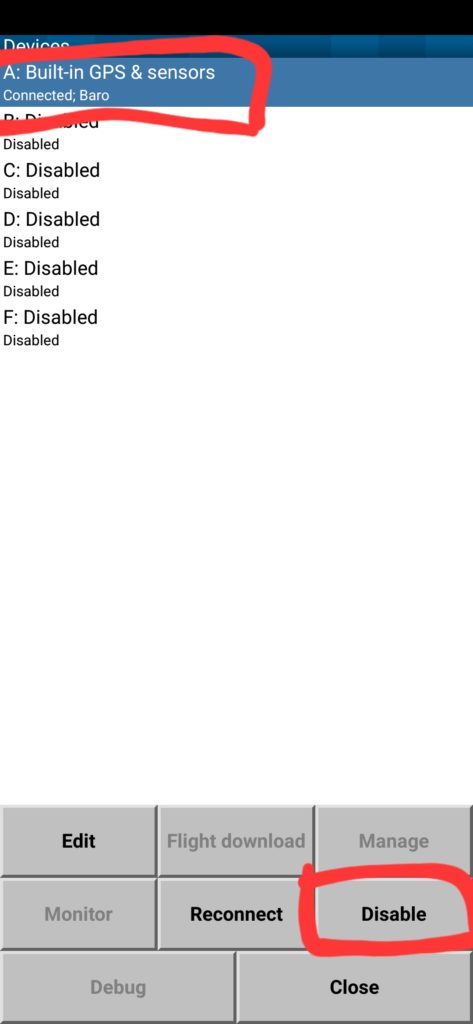
6. Then select 2nd device and tab EDIT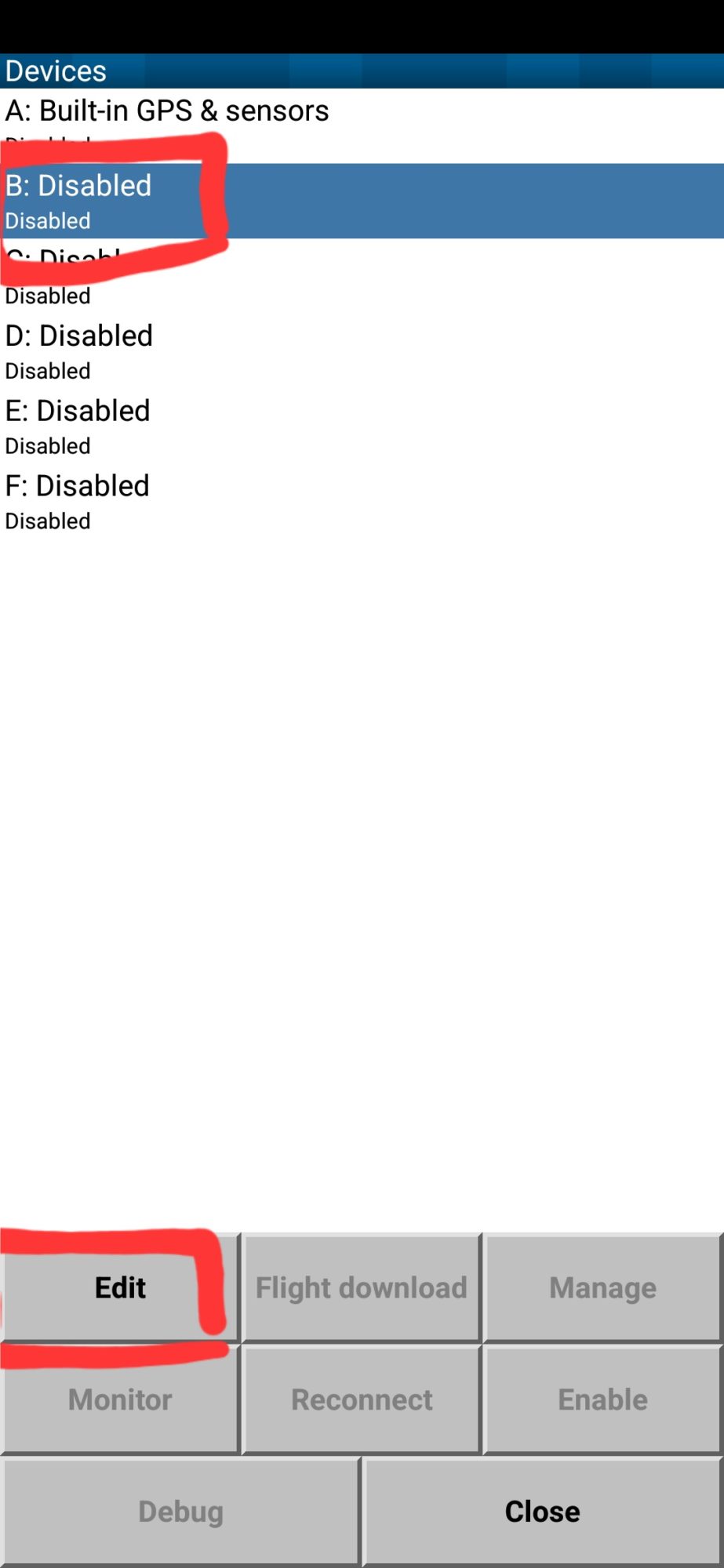 7. On the device page, set values like on the example picture.
– If your MSFS to NMEA app installed on different device than XCSoar, IP address should match local IP of the device with app installed (you can find it at the top of the black screen
– If you change TCP server port, set new value in TCP Port field.
Once finished, press OK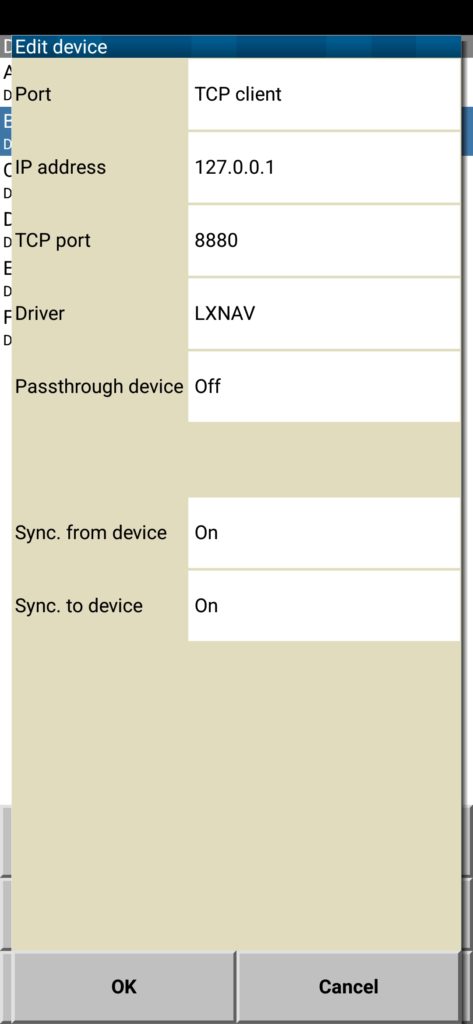
8. In the devices list, you can see such data comes from the device #2: GPS fix, Baro, Airspeed, Vario. Press CLOSE.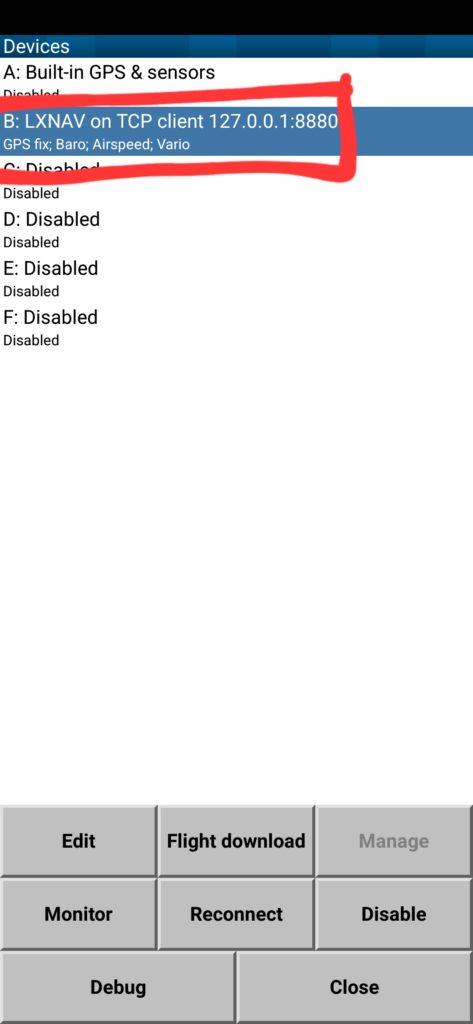 9. Validate XCSoar values with simulator data – altitude, airspeed should match.
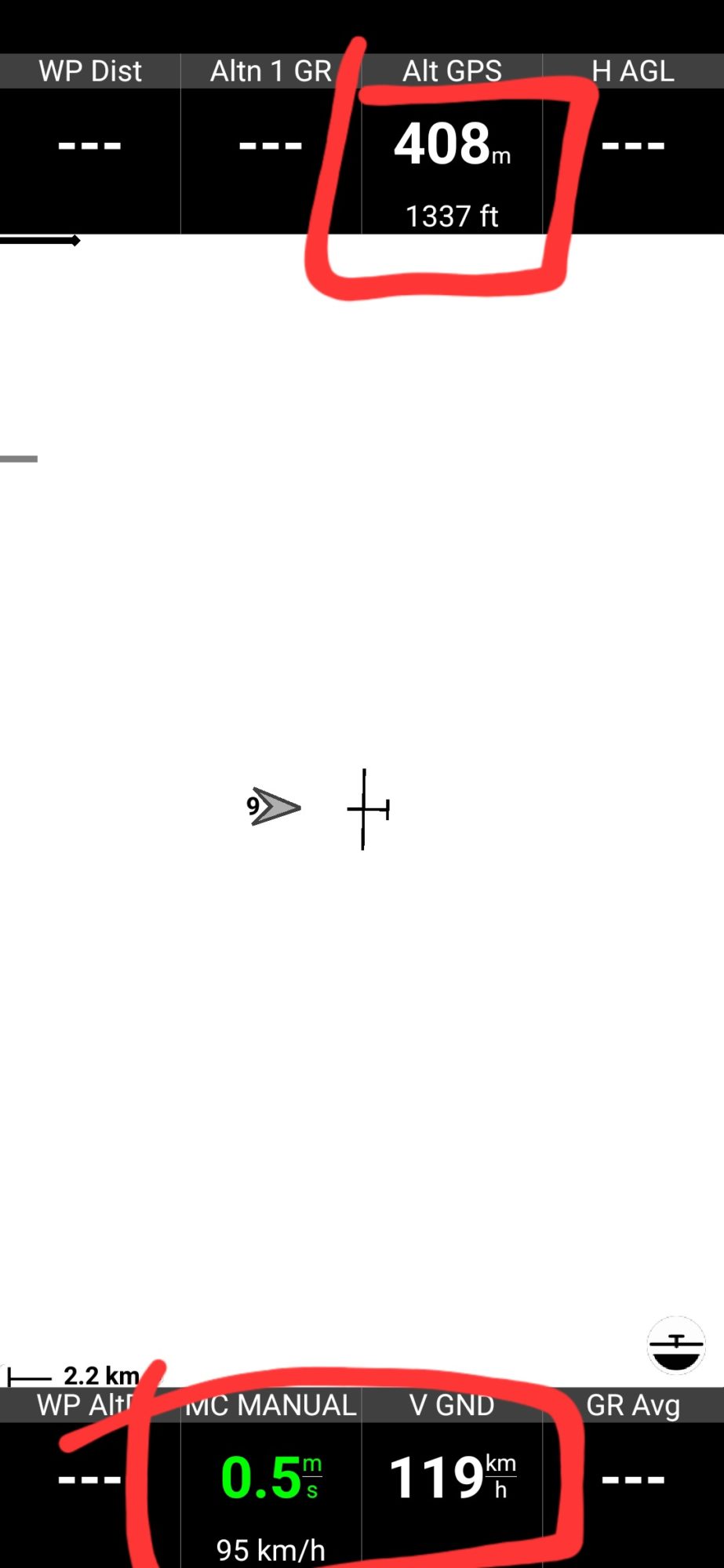 10. Configure XCSoar for your needs – track indication, thermalling assist, download map for your area. You can find detailed manual on the official website https://www.xcsoar.org/
NMEA data export toolbar v0.2
– minimized GPS icon appears only when cursor is nearby (only works when placed in top left corner due to toolbar system limitations)
– QR images scalable
– frequency and IP stored in used data and restored on toolbar restart
NMEA data export toolbar v0.1
base functionality copied from Blanik tablet script. Shortly, it’s a toolbar which sends aircraft data to the mobile app. This app then shares data with navigation app, like XCSoar or SkyDemon. Android app supports GPS spoofing, which can be used common nav apps like Google Maps (developer mode should be enabled on the smartphone).